
Survs

New Features: File Upload and Cross-Tabulation

April 13, 2016

Today, we're excited to introduce two great new features: Cross-Tabulation and File Upload.

  • Cross-Tabulation allows you to show a side-by-side comparison of two Multiple Choice questions, helping you see how they relate to each other. This feature is available on all paid plans and can be found on the “Analyze > Crosstabs” page.
  • File Upload is a new question type that allows respondents to upload a file, which you can review later in the “Analyze” section. A common use case is collecting resumes or other documents. This feature is available on Pro and Premium plans only.

We hope you enjoy these new features! As always, if you have any questions or feedback, feel free to email us.

Happy asking!
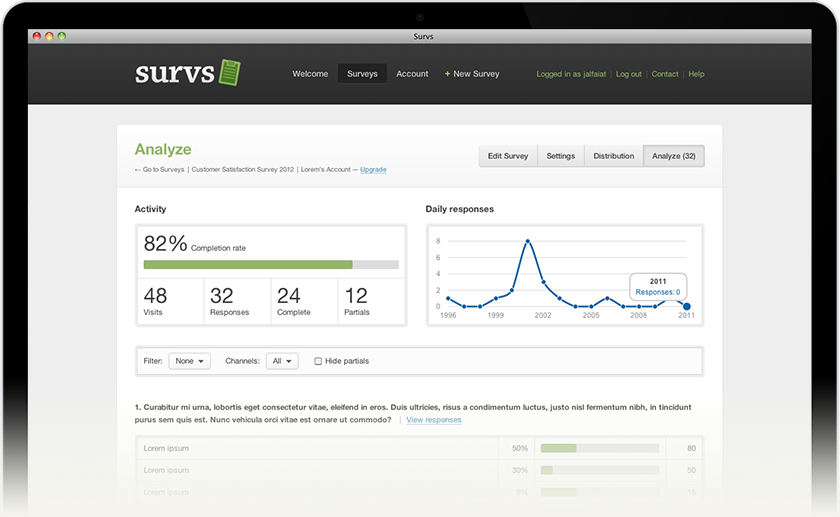
New Survs, Feature Recap

February 16, 2015

In previous posts, we covered several individual features introduced during 2014. In this post, we've combined the most relevant ones so you can quickly catch up on what's new.

  • New Design – A cleaner interface that's easier and quicker to navigate.
  • Theme Editor – A brand-new, more flexible theme editor.
  • Reports – Share survey results with colleagues, clients, and audiences.
  • SPSS – Export your survey results to SPSS for statistical analysis.
  • Responsive – Surveys are now fully mobile-friendly.
  • Email Notifications – Subscribe to notifications for new responses.
  • Piping – Display an answer from a previous question on a later page.
  • Custom URL Variables – Store respondent data through a survey link.
  • HTML Formatting – Add HTML to create links, bold, italic, and underline text.

We hope you enjoy these new features! As always, if you have any questions or feedback, please email us.

Happy asking!

New: Custom URL Variables

May 27, 2014

This feature allows you to store respondent data by passing values through a survey link to be added to the survey results. For example, you can associate a customer ID or email address from your database with your survey respondents. Once stored, the data appears in the Analyze section alongside the survey results.

A typical survey link looks like this:

https://survs.com/xxxx

For example, to pass a respondent's customer ID and email address from your database into the survey, the link would look like this:

https://survs.com/xxxx?customer_id=123&email=lorem@ipsum.com

When the respondent completes the survey, the custom data in the URL is linked to their response, displayed in the Analyze section, and included in Export files. This feature is available on paid plans only.

We're excited for you to try this helpful new feature! If you'd like to get in touch, please email us at support@survs.com.

New Feature: Pre-Populate

May 21, 2014

Today, we're excited to introduce you to Pre-Populate. This new feature allows you to automatically fill certain survey fields with data you already have (e.g., name, age, email) instead of asking for the information again.

How it works

Here is a sample survey:

https://survs.com/survey/p9hxm2evqz

If a user clicks the link, they will be taken to the survey with no pre-filled questions. To pre-fill a question, additional information must be appended to the end of the URL. The following example fills the first question with “Mary”:

https://survs.com/survey/p9hxm2evqz?q1=Mary

The following link automatically selects the third choice of the second question:

https://survs.com/survey/p9hxm2evqz?q2_3

You can also append multiple parameters in the same URL to pre-fill multiple questions, as in this example:

https://survs.com/survey/p9hxm2evqz?q1=Mary&q2_3

Pre-Populate URL formatting

The formats for URL parameters for each question type are as follows:

  • Multiple Choice
    q1_2 – Selects the second choice of question number one.
  • Open Text
    q2=Mary – Enters “Mary” into question number two.
  • Multiple Textboxes
    q3_1=John – Enters “John” into the first textbox of question number three.
  • Matrix
    q4_1=2 – Selects the second column of the first row in question number four.

As always, we welcome your questions and feedback. To get in touch, please email us at support@survs.com.

New Feature: Piping

May 13, 2014

Today, we're happy to introduce a helpful new feature called Piping. Available on paid plans, Piping allows you to display an answer from a previous question on a later page. For example, a piped answer can be displayed within a question or used as a new answer choice in a follow-up question.

If you ask a participant to choose a favorite color:

1. What is your favorite color?

Red

Green

Blue

You can then incorporate the answer into a question asked later in the survey:

2. Please tell us why you like Green best.

Or, if you ask for the participant's name:

1. Please tell us your name.

You could include the participant's name in a final “thank you” message:

Thank you for answering our survey, Mary!

How to Add Piping

Piping can be used to pull answers from the following question types:

  • Multiple Choice – Single answer
  • Multiple Choice – List
  • Open Text – Single line
  • Open Text – Paragraph

Selected, or piped, text can be displayed within the following survey elements:

  • Question titles
  • Answer choices
  • Headings and paragraphs
  • A “thank you” message

Remember, to add Piping, the piped text must be inserted after its original placement, on a later page of the survey. For example, to display text from question one, simply insert [Q1] into the text of a later question, answer choice, paragraph, or message.

We hope you enjoy this new feature! As always, if you have any questions or feedback, please email us at support@survs.com.

New: Email Notifications, Better HTML Channel

May 5, 2014

We're excited to share three new features we've been working on over the past few weeks.

Email Notifications

You can now subscribe to email notifications for new survey responses. Once subscribed, you'll receive a daily email digest with a summary, sent only when there are new responses. You can sign up for notifications via the survey Settings page by activating the Email Notifications option.

Better HTML Embed Channel

We've made several improvements to the HTML Embed channel. When embedding a survey into your website or blog, you can now choose from the following options:

  • Auto resize – Adapts the frame height to the survey height.
  • Transparent background – Sets the survey background to transparent.
  • Hide header – Hides the survey header.
  • Full width – Removes the survey margins, making the frame full width.

HTML Text Formatting

You can now add basic HTML tags to create links, as well as bold, italic, and underline text within your survey.

New: Survs introduces 18 additional languages

January 15th, 2014

Now it's even easier for people around the world to create surveys with Survs. Starting today, you can create surveys in 18 additional languages, on top of the 11 languages already supported. The newly available survey languages are: Bulgarian, Czech, Danish, Finnish, Greek, Hebrew, Hungarian, Indonesian, Korean, Malay, Norwegian, Polish, Romanian, Swedish, Tagalog, Thai, Turkish, and Vietnamese. The other available languages are: Arabic, Chinese, Dutch, English, French, German, Italian, Japanese, Portuguese, Russian, and Spanish.

As always, we love hearing from our users. If you have any questions or suggestions, please write to us at support@survs.com.

It's here! Meet the new Survs

June 26, 2013

Survs New Interface

After months of hard work and refinement, we're extremely happy to announce that today is the day – we've launched the new Survs! Creating surveys is now faster and easier than ever. Here are some of the improvements and new features:

  • New Design – Survs has been fully redesigned, resulting in an interface that's cleaner, easier to navigate, and quicker to use.
  • New Themes – We've created a new collection of beautiful themes for you to choose from.
  • The Theme Editor – Customize the look of your chosen theme with our brand-new, more flexible Theme Editor.
  • New Survey Templates – We're thrilled to introduce a new collection of professional survey templates.
  • Reports – Reports are a new way to share your survey results and data with colleagues, clients, and audiences.
  • SPSS – Export your survey results to SPSS for advanced statistical analysis.
  • Google Web Fonts – Customize your survey design by choosing from a selection of Google Web Fonts.
  • Responsive – Surveys are now fully mobile-friendly.

We hope you enjoy the new Survs. If you have any questions or feedback, please get in touch with our support team. We'd love to hear from you: support@survs.com, or follow @survs on Twitter.

We look forward to making Survs great together.

Cheers,
The Survs Team

New Survs is Almost Here!

June 20, 2013

Hello! It’s been a while. We’re excited to announce that a completely redesigned Survs is coming soon. The new Survs has been in private beta for about a month, and the feedback so far has been excellent and incredibly useful.

Our main focus has been on improving Survs’ core functionality, but we’ve also added several new features. You can expect the new Survs to make creating surveys faster and easier, with a friendly, easy-to-use interface.

We’d like to give a special thanks to our private beta testers – you know who you are! And to everyone else, we can’t wait for you to discover how simple we’ve made it to create, distribute, and analyze surveys online.

Stay tuned!

New Features and A Look Ahead

March 1, 2012

After several quiet months, we're excited to share some important updates with you! We recently launched six highly requested features, and we have big plans for 2012. Here's a rundown of what's new.

New Features

Export: Filters

You can now choose filters and channels when exporting your survey results. Filtering makes it easier to analyze large surveys in greater detail.

Export: Internationalization

We fixed a bug in the Export feature that made it difficult to read international characters. We value our customers from around the world and will continue supporting features that enhance internationalization.

Matrix Likert/Rating Questions: Custom Values

You can now adjust the scale of Matrix Likert/Rating questions. You can invert the scale from 1-2-3 to 3-2-1 or enter custom values.

Multiple Choice Questions: Answer Limit

Previously, there was no way to limit the number of options a respondent could select in multiple-choice questions. Based on your feedback, we've updated Survs so you can set a minimum and maximum number of answers. This is useful when limiting answers makes your data more meaningful.

Open Text Questions: Format Validation

Want better answers from open text questions? You can now specify whether the response should be formatted as a number, email address, or date. Collecting information in a specific format helps ensure more accurate data and better results.

Links

You can now include links in your surveys using Markdown. This feature was highly requested, and we've added a brief guide on the Edit Survey page.

Use a set of parentheses immediately after the link description's closing square bracket. Inside the parentheses, paste the URL where you want the link to go.

Example 1: This is [an example](https://example.com/) inline link.

Example 2: [This link](https://example.net/) goes to a different URL.

A Look Ahead

Along with these new features, we're really excited about the year ahead. We'll be sharing details about a big update we're working on soon, so stay tuned!